Help desk automation
Set the rules once. After that the system sorts, assigns, chases and closes requests on its own, day and night. Before you switch anything on, it shows you what it is about to do.
Rules that run on their own
A rule waits for something to happen, or checks your open requests on a timer. When the conditions match, it does the work.
- Run when something happensA request arrives, its status or urgency changes, a tag is added, a field is filled in, the customer writes back, your team replies, a note is added, someone is mentioned, a snooze ends, a rating comes in. One rule can watch several of these at once.
- Or run on a timerRe-check every 15 minutes, every hour or every day, counting only the hours your office is open
- Conditions in two listsOne list where every line must match, and one where any single line is enough. Tests include changed, changed to, starts with and matches.
- Nineteen things a rule can doSet the status, urgency or type; assign to a person or a team; add or remove tags; fill in one of your own fields; set a due date; add a follower; snooze it; add a note only your team sees; add checklist items; move it to another inbox; send an email; send an automatic reply; tell your team; ask the customer for a rating; send it to the bin; or stop here
- Ten rules ready madeTag refund requests, lift a VIP's urgency, close solved ones, nudge an idle one, warn when a reply time is nearly up, and five more. Start from one and edit it.
- Try a rule on a real request firstIt changes nothing and hands back a line-by-line trace of which conditions matched and which did not
- Check a rule before you even save itPreview it while you are still editing
- Set the order they run inReorder them, turn one off for a while, or copy it. Saved versions of a rule are listed, so you can see what it used to say.
- Every run is written downWhat fired, what it changed, and what it skipped
- Automatic replies with the brakes onNever to a no-reply or bulk sender, never to spam, never twice to the same person inside 24 hours, no more than five an hour, and a do-not-reply list of your own
- Hold a big change for a second pair of eyesA bulk change over the size you set waits for someone to approve or reject it
- Show and hide form questionsAsk the next question only when the answer before it calls for it
Send each request to the right person
Pick how work is shared out, for the whole account or team by team. Nobody is handed more than they can hold.
- Five ways to choose a personIn turn, the least busy, the one longest without new work, at random, or the highest skill level
- Skills, with levelsYou name the skills yourself — a product, a language, a certificate — and give each person a level. Say which skills a team needs, and see where a skill is used.
- A limit per personHow much open work one person may hold, counted in units so a chat and an email need not weigh the same
- Settings per channelMethod, how much each item weighs, how long it may wait, whether the person must accept it, how long the offer stands, and where it goes if nobody takes it
- Offer, accept or declineA person can turn an offered request down, and it goes back to the queue
- Route by what it is aboutBy category to a team, by topic using patterns you can test, and by the email address it came to — in order, with a test box
- Who is here right nowPeople set their own status, admins can set it for them, and you edit the list of statuses they may pick
- Out of officeMark someone away and move their requests, with a preview of exactly what moves
- Keep someone out of automatic assignmentBy name, so people in training or on notice are not given work
- Waiting work, by teamSet the longest wait and the order to take them in, then hand out what is waiting
- Nothing happening? EscalateEscalation rules that repeat until somebody acknowledges, plus your own alert rules that raise one
- Shifts and time offWeekly shifts per person with a time zone, and time-off requests to approve or cancel. Off-shift and on-leave people are skipped.
- A forecast of what is comingWorked out from your own past volumes
- Move all of someone's workOne screen for when a person leaves, with a typed confirmation
- One switch turns it all offAnd counts can be recounted or repaired if they ever look wrong
Why it went there, and what a change would do
Automatic assignment usually goes wrong quietly. These two screens are the unusual part: one tells you why a request landed where it did, the other shows you what a change would do before you make it.
Why did this go to this person?
Ask the question on the request itself, or in the work queue. You get a plain sentence saying what was decided, which method did it, and the whole handover history. Under that is a table of everyone who was in the running: whether they could take it, the reason if they could not — not signed in, off shift, on leave, left out of automatic assignment, already full — how much work they are holding against their limit, and their skill score for this request.
A test run before you change the rule
Choose how many waiting requests to deal out and which method to try. The system tells you who each one would go to and why, and saves none of it. So you can see the effect of a change on your real queue before anyone is given anything. Batch reassignment has the same preview, and every real decision is kept in a log you can read by request or by person.
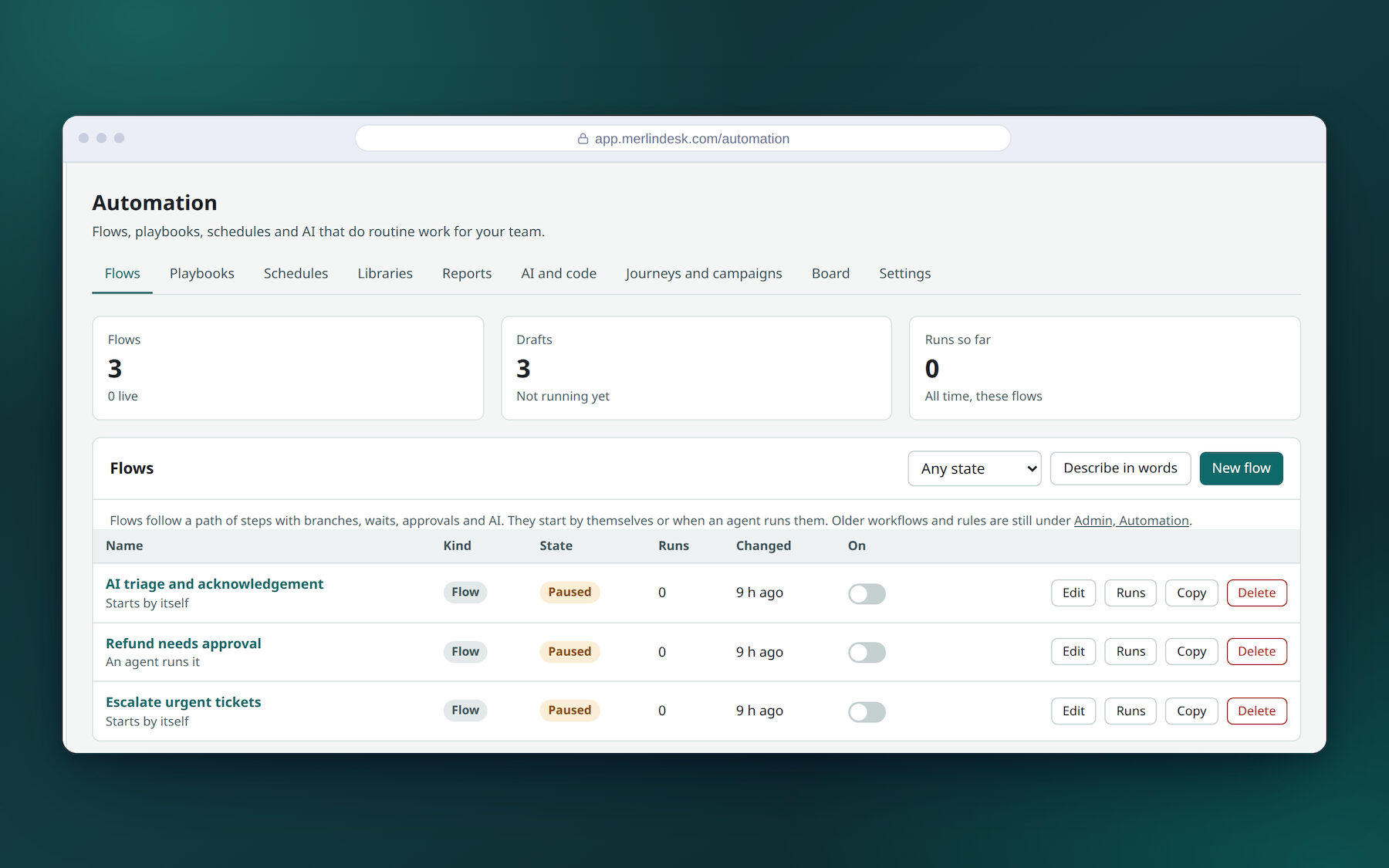
Draw a flow, then publish it
Longer jobs are drawn on a canvas instead of written as a rule. Drag the steps in, join them up, keep it as a draft, and publish it when you are happy.
Thirteen kinds of step
- When this happensA request event, a time of day, or a person starting it by hand
- If this, or else that
- Do somethingAny of the actions a rule can take
- WaitFor a length of time, for an event, or until you are open again
- Split by caseMore than two ways out of one step
- Run another flowSo one piece of work is written once and used everywhere
- Wait for an approvalNothing moves until a named person says yes
- An AI stepNeeds your own AI provider account — see the note below
- Call another system
- Run your own code
- Send half one way, half the otherAn A/B split
- Send a message
- End
- Draft now, publish laterThe live flow keeps running while you work on the next version
- A check written in plain words"Add a When this happens step to start the flow." "This step is not joined to the start." "The two arms must add up to 100%." "The flow loops back on itself without waiting." You cannot publish while a problem is outstanding.
- A test run with nothing happeningNo mail goes out and nothing is changed
- Run history, step by stepOpen any run and read what each step did. Cancel one that is still going.
- How much time each flow savedRuns, how many fired, how many failed, actions taken, and time saved worked out from the minutes-per-action figure you set. Set a goal per flow and watch it.
- A guard against a flow that keeps setting itself offIt pauses after too many runs on the same request within an hour, and stops at a step count you choose
- A/B split, and the paths takenRun two versions side by side, list the experiments, end one, and see which way requests actually went
Calling other systems, and running your own code
A flow can reach out to software you already use, or run a few lines of your own.
- Saved connectionsA bearer token, a username and password, an API key or OAuth2. Map your fields onto theirs, set retries and a timeout.
- Starting points for common onesA plain JSON web service, a catch hook for Zapier, Make or n8n, AWS EventBridge, Kinesis, Zabbix, an HR system, Google Calendar or Outlook Calendar. These post to a web address; there is no calendar logic built in.
- Try a connection without calling outA dry run shows the exact body you would have sent
- An allowed list of addressesA flow can only reach the hosts you have put on the list, and private addresses inside your network are refused
- Your own code, locked awayIt runs in a sealed worker with no network at all, no access to the machine it is on, a time limit and a memory limit. The source is stored encrypted. Off until an admin turns it on.
- Test the code and read its logsWith plain messages when it runs too long or uses too much memory
- Safety switchesStop all outbound messages, strip personal details such as card, Aadhaar or PAN numbers, or silence flows altogether. A preview shows you what would be taken out.
About the AI step. The AI step, and starting a flow by describing it in words, are both built — and both need your own account with an AI provider before they do real work. On our demo they fall back to matching keywords, so treat them as a shape waiting to be filled in rather than something working today. AI actions are off by default, and each one has a confidence level it must beat and a daily cap you set.
Saved steps your team applies by hand
Not everything should be automatic. These are for the jobs a person decides to start.
- Saved replies that do more than typeUp to fifteen kinds of change in one, and a preview that shows what it will do before it does it
- Fill-in prompts inside the textThe saved reply stops and asks you for the missing detail
- PlaybooksA named set of steps a person applies to a request
- Step listsDo something, if this or else that, wait, remember a value, stop — with if/else inside if/else. Choose per step whether a failure stops the job or it carries on. There are no repeat steps.
- Scheduled jobsA cron line and a time zone: run an action, send a reminder, or clear out matching requests. Preview which ones it would touch, or run it now.
- LibrariesKeep your rules and flows in named sets, and export or import a set as a file
- Stages a request moves throughSay what must be true before it may move on, check a proposed move, see them all on a board, and list the ones that are stuck