Turn support emails into tickets
Mail sent to your support address becomes a numbered ticket. Your reply goes back as an ordinary email, on the same thread the customer is already reading. This page covers how mail gets in and how it is sorted. Then whose name it goes out under, and what happens when it bounces.
Your support address becomes tickets
You can connect more than one address. support@, billing@ and sales@ can each behave differently and still land in the same place.
- Several mailboxesEach with its own settings, and all of them feeding one ticket list
- See each one at a glanceThe address, how it is connected, whether it is working, when mail last arrived, and how much came in over thirty days
- Forward your mail to an address we give youThe usual way in. It needs an Amazon SES inbound set-up behind it
- Or let your provider post it to usAn inbound webhook: see the address, switch it on or off, change its signing key, and send yourself a test
- Or collect it by POP3Host, port, user and password, stored encrypted. Checked as often as once a minute, with a check-now button and the option to leave a copy on the server
- Or pull it through Microsoft 365Using the Microsoft connection, once your sign-in details are in
- Set what new mail becomesPer mailbox: which team it goes to, the ticket type, the priority, and the name and address replies come from
- Pause a mailboxOr disconnect it and keep every ticket it ever made
- Add the people in Cc to the ticketSo a reply goes to all of them
- Find the real customer behind a forwarded emailRather than filing it under the colleague who forwarded it
- Do not raise a ticket for an out-of-office or a bounceThose are recognised and left alone
- Give the ticket to whoever answers first
- Open winmail.dat attachmentsThe ones some Outlook set-ups send
- Keep the original emailFor one to thirty-six months, and open it from any message in the ticket
"Can it read my Gmail inbox?" Not today. There is no Gmail reader and no IMAP reader in the product. You can type an IMAP mailbox's details in and they are stored, but nothing goes and fetches new mail from it. Please do not buy it expecting that.
Mail reaches MerlinDesk by forwarding, by your provider posting it to our webhook, by POP3, or through Microsoft 365. If the mailbox you already have can hand its mail over by POP3, that works today.
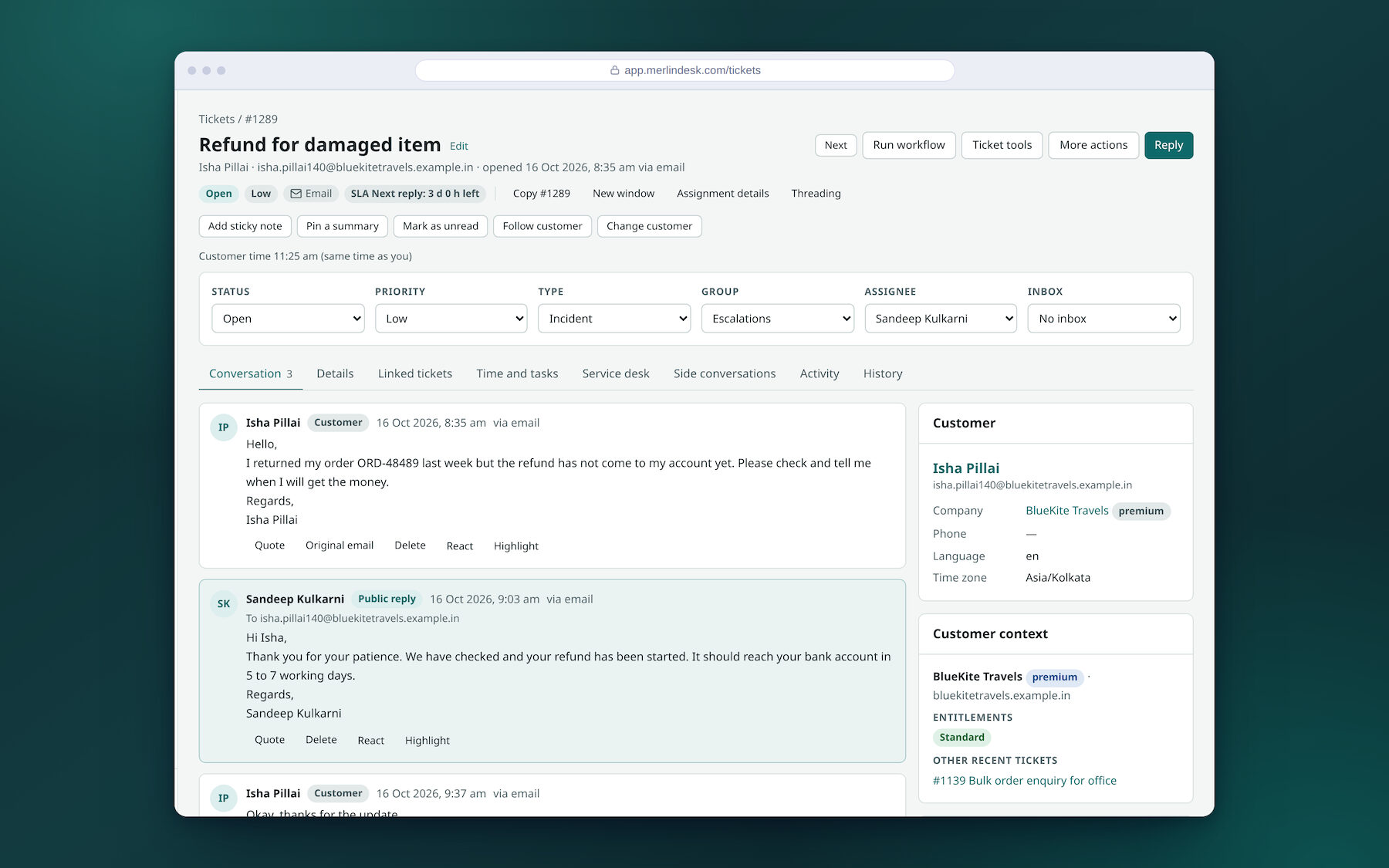
Replies stay on the same email thread
The customer should not be able to tell that a help desk is involved. They reply to the email they already have, and it arrives on the same ticket.
- A reply is matched to its ticket three waysBy the hidden email headers, by the ticket number in the subject, or by the address it was sent to
- Choose how threading behavesIncluding whether a reply to an old, closed email opens that ticket again or starts a new one
- Edit who the reply goes toTo, Cc, Bcc and reply-to, on the ticket itself
- A reply-by-email address for one ticketOr a one-time sign-in link, for a customer who cannot find their password
- Change a ticket by writing a line at the top of an emailA priority or a tag change, with a log of what ran. Off until an admin turns it on
- Turn away mail to addresses that do not existUnknown plus-addresses and catch-alls, and anything that looks like a loop
- Hide the signature and the quoted historySo a long chain is readable, with a control to show all of it
- Open what came with itPreview a PDF, play a voice note, show a video link in place
Sorting mail before anyone reads it
Most support mail can be filed by a rule. Rules run in the order you put them in. You can act on anything in the message, including headers nobody normally sees.
- Routing filters, in your orderMatch on who it is from, the sending domain, the address it was sent to, the subject, the body, or whether it has an attachment
- Then do somethingSet the team, priority, type or tags, mark it spam, drop it, or stop and run no further rules
- Rules on any email headerAny header at all. Skip the automatic reply, drop it, tag it, send it to a team, or fill in a field
- Block or allow a senderOne address or a whole domain, and choose whether it goes to spam, is thrown away, or is refused at the door
- Check the sender is who they sayPer mailbox: off, SPF or DKIM, a DMARC pass, or strict. Then accept it, flag it, hold it or refuse it
- Look at what was heldLet it through, or turn it away, one by one
- Set how hard the spam filter triesPlus protection against a sudden storm of mail, and how long spam is kept. These are rules — bounce, automatic reply, bulk and loop checks — not a learned model
- FoldersInbox, spam, sent, failed, all, and your own, built from a filter
- Tag rulesTurn one tag into another, or never add it at all, with a box to try a tag in first
- Caps on sizeThe largest attachment on an email, and the most recipients one email may have
The name it goes out under
Everything leaving the system can carry your name, or your client's, down to the signature and the wording of the automatic notices.
- Sender identitiesFor a brand, a team or one person, each verified, each with its own reply-to address and signature
- A signature per mailbox and per teamPlus a hidden Bcc per team, if a copy has to be filed somewhere
- Choose the from-nameThe person, the person and your company together, or your company alone
- The name each customer sees for each of your staffSet it once per teammate
- Show or hide our footer on outgoing mailAlways, never, or according to the plan
- Edit the system emailsSubject, the formatted version and the plain-text version, with a preview, a test to yourself, a switch to turn one off, and a reset to the original wording
- Three looks for system mailPlain, in your colours, or the wider update format — and in the customer's language or in English
Automatic replies that cannot start a loop
Two machines answering each other all night is a real way to burn a sending reputation. The quiet period is the setting that stops it.
- Say "we have got it"When the ticket is made, straight away or after a delay you set
- Only during working hoursWith a different message when the office is shut
- A quiet periodOnce per sender per day, or once per ticket, so the same address is never answered again and again
- Never answer a machineAutomatic mail, and people whose own away message is switched on, are left alone
- Put your best help articles in itUp to a number you set, and only the ones above a match score you set
Every bounce in plain words
Most help desks tell you a message failed. This one tells you why, in a sentence, and what to do about it. Bounce and complaint events arrive from Amazon SES, so the log fills up once your SES account is connected.
- A log of everythingSent, delivered, bounced, complained about, delayed, refused
- A plain reason on every lineAnd a line telling you what to do next about it
- The last thirty days at the topSent, delivered, bounce rate and complaint rate, with advice on what the numbers mean
- An alert when bouncing gets badYou set the rate. You can accept the alert, or have it checked again on the spot
- It can pause the mailbox by itselfAbove the limit you set, sending stops rather than ruining the reputation of your domain
- A list of addresses to stop writing toHard bounces and complaints are added to it automatically. You can search it, add an address with a reason, or take one off
- Load a list you already havePasted in, or imported from a spreadsheet
- Retry the soft failuresGive up after too many, and tell the agent their reply did not get through
- A daily send limitWith today's count against it
- Send the notice as a link onlyNo ticket text in the email at all, for customers whose mail you should not be copying
- A separate log of notification emailsWhat went, and whether the careful version was used
- Ask for a sending address of your ownWith a thirty-day warm-up plan that raises the daily limit in steps
- See when a customer opened an emailA tracking pixel. Off unless you switch it on, and plenty of mail apps block it
Proving the mail is really from you
Gmail and Yahoo now turn away bulk senders who cannot prove who they are. This is the part of a help desk nobody mentions until the mail stops arriving.
- Add your sending domainYou are given the exact SPF, DKIM and DMARC records to publish, with pass or fail beside each one
- Check them again whenever you likeOn this demo the check reads a local file rather than live DNS, so a pass mark there is not proof
- A warning before you remove a domainBecause replies start landing in spam folders the moment you do
- DMARC reports, summarisedThe pass rate, what is failing, and the address to have the reports sent to
- The Gmail and Yahoo rules, checkedPer domain, with a list of what still needs fixing
- Your own web address on the links inside emailsThe set-up screen is there. Pointing a real address at it needs the certificate work that is not finished yet
Encrypted mail, and a copy of everything
Some customers — banks, hospitals, law firms — will not accept support by plain email. This part is genuinely working, not a stand-in.
- PGP or S/MIMEMake a key here or upload your own, for a mailbox, a team or one person. The private half is stored encrypted
- Signed, encrypted, or bothDecided per team. Encrypting needs the other side's public key on file
- It really runsIt uses gpg and openssl on the server itself, not a stub standing in for them
- Look up a customer's keyFrom the place they publish it. It reads a folder on your own server until it is pointed at the live lookup service
- Keep a copy of every messageBcc'd to an address you choose, and the files kept for as many days as you say
- Browse the copiesRather than digging through a mailbox for them
Bringing your old mail in
- Load old mail as closed ticketsFrom IMAP, Gmail, Microsoft 365, or an mbox file
- Say how far back, and how manySo you can try a week before committing to three years
- Nothing goes out while it loadsNo automatic replies are sent, and no reply clocks are started
- It is a one-time importIt reads the old mail once. It does not leave a live connection behind it
Sending email needs your own email provider. MerlinDesk writes the message, but hands it to Amazon SES to deliver, and SES is the only real sender it has. Until an SES account is connected, outgoing mail is written to a file on the server instead of being sent.
That is why nothing on the demo reaches a real customer: it is deliberate, so that looking around cannot email anybody by accident. Everything on this page — the mailboxes, the rules, the signatures, the sender records, the delivery log — is set up and waiting. The account that actually puts mail on the wire is yours to bring.